AI Video Generation in 2026: A Creator's Guide to Sora, Veo and Runway
Type a sentence, get a video clip. AI video tools went from party trick to production workflow in eighteen months — here's what each one is actually good at.
Relevant ads will appear here once AdSense is connected.
I needed a 10-second establishing shot of a rainy Tokyo street for a client video last month. Two years ago that meant buying stock footage for $79 and hoping it matched. This time I typed a paragraph into a video model, waited four minutes, and had three options that matched the grade of the rest of the project. The client couldn't tell which shot was AI.
That's where AI video generation sits in 2026: not replacing filmmakers, but quietly eating the most expensive and boring parts of production. B-roll, product shots, establishing shots, ad variations, talking-head backgrounds.
I've spent the last six weeks generating hundreds of clips across every major tool, and burning real money doing it. This guide covers what each tool does best, what they cost, the workflow that actually works for creators, and the honest list of things AI video still ruins.
Where AI Video Stands in Late 2026
Eighteen months ago, AI video meant six-fingered hands and melting faces. The models crossed a threshold in early 2026: short clips now hold together physically, lighting stays consistent, and text inside the frame is mostly legible.
The practical result is that short-form ads, product demos, explainers, and travel clips are increasingly AI-generated, and most viewers never notice. The shift is invisible but the volume is massive: creators who once paid for stock footage libraries now generate custom clips that match their exact brief.
What hasn't changed: anything longer than 30 seconds still falls apart. Dialogue scenes with multiple characters are unreliable. And hands, while much better, remain the thing you check first in every generation.
The Tool Showdown: Sora vs Veo vs Runway vs the Rest
OpenAI Sora remains the reference for text-to-video realism. It handles complex scenes and camera moves better than anything else, and its understanding of a detailed prompt is unmatched. Access is through ChatGPT Plus/Pro tiers or API, and generation is slower than competitors. Best for: hero shots where quality matters more than speed.
Google Veo 3 is the speed-and-integration pick. It generates fast, understands natural language prompts well, and plugs into YouTube and Google's creative suite. For creators already living in Google's ecosystem, it's the path of least resistance. Best for: YouTube creators and fast-turnaround social content.
Runway Gen-4 is the professional's workbench. Beyond text-to-video, it offers inpainting, motion brushes, camera controls, and green-screen-style editing that treats AI as one tool among many. Best for: editors who want control, not just a generate button.
Kling punches above its price on human motion and has a generous free tier that made it the default starter tool for thousands of creators. Luma Dream Machine excels at smooth camera movement and dreamlike aesthetics. Pika is the quick-idea tool: fast, fun, lower fidelity.
| Tool | Strength | Price signal | Best for |
|---|---|---|---|
| Sora | Realism, prompt understanding | Subscription + credits | Hero shots, ads |
| Veo 3 | Speed, Google integration | Subscription | YouTube, social |
| Runway Gen-4 | Editing control, inpainting | Credit-based | Professional editors |
| Kling | Human motion, value | Generous free tier | Starting out |
| Luma | Camera moves, aesthetics | Credit-based | Cinematic b-roll |
| Pika | Speed, playfulness | Free / cheap | Quick ideas, memes |
A Creator Workflow That Actually Works
After dozens of projects, here's the workflow I keep coming back to. It treats AI as a department, not a replacement.
Step 1: Shoot the humans, generate the rest
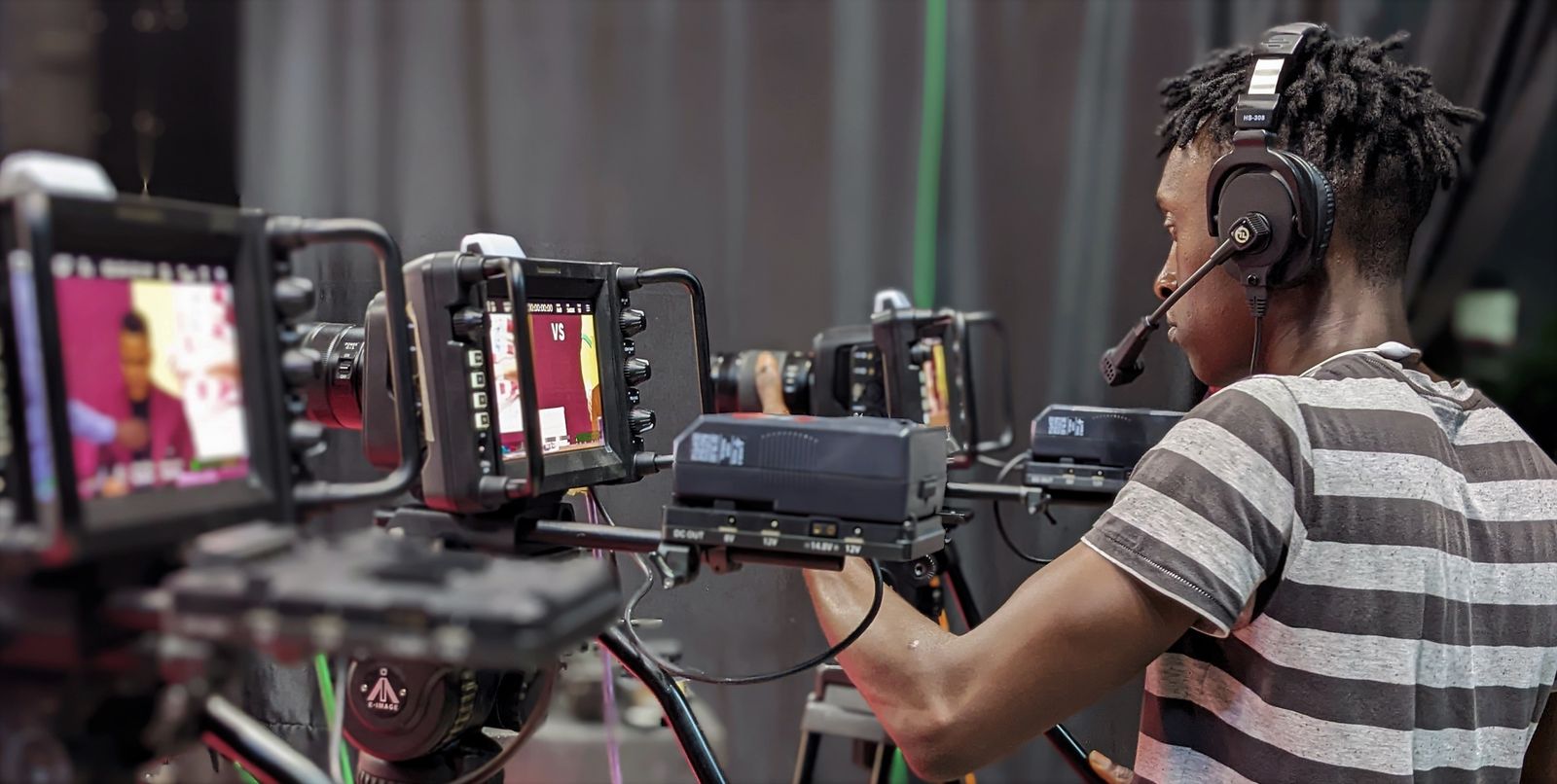
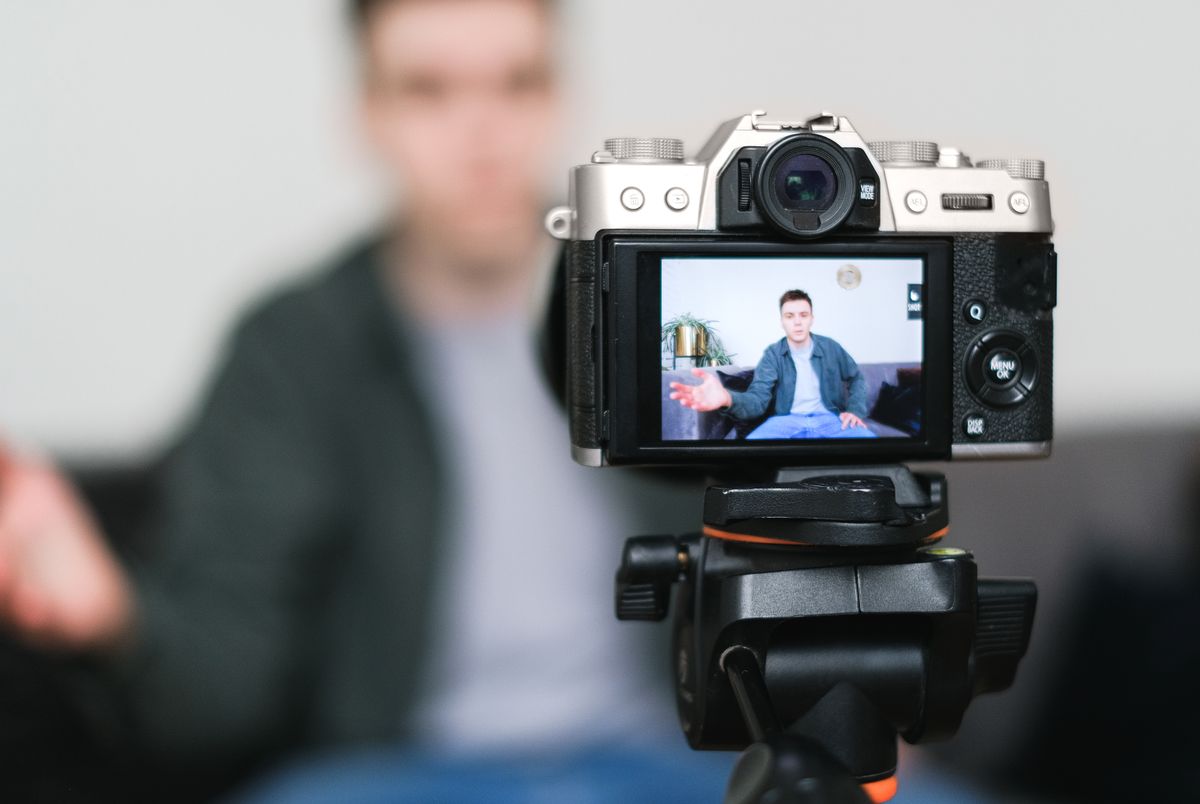
Film your talking head, interviews, and anything with real people on a real camera. Generate establishing shots, b-roll, product close-ups, and backgrounds with AI. This split plays to each side's strength.
Step 2: Write prompts like shot lists
Bad prompt: "a cool city video." Good prompt: "Slow dolly shot down a rain-slicked Tokyo alley at night, neon signs reflecting in puddles, shallow depth of field, cinematic, 24fps feel." Specify camera, light, movement, and mood. The models reward specificity.
Step 3: Generate in batches of three
Never generate one clip and hope. Generate three variations of every shot you need, pick the best, and move on. Your hit rate will be roughly one in three for tricky shots, two in three for simple ones.
Step 4: Edit like it's real footage
Cut AI clips into your timeline, color grade them to match, add real sound design. Sound is the secret: a great sound bed makes AI footage feel real, and its absence is what makes AI video feel uncanny.
This hybrid approach is also the honest one to disclose to clients. I label AI shots in my project files and tell clients which shots are generated. In six weeks, not one client objected; two asked me to generate more because it saved them location costs.
What AI Video Still Gets Wrong
Let's be blunt about the failure modes, because they're consistent across every tool.
Hands and complex interaction. Better than 2024, still the first thing to check. Anyone handling objects, typing, or gesturing deserves a frame-by-frame look.
Text and logos. A storefront sign might read correctly in one generation and dissolve into glyphs in the next. Never trust AI-rendered text without zooming in.
Consistency across shots. The same character in two separately generated clips will look like siblings, not the same person. Character-reference features help but don't fully solve it. Plan scenes accordingly: one generated shot per setup, or accept the drift.
Physics at the edges. Crowds, water, fire, and anything with complex motion can glitch in the background where you're not looking. Watch the whole frame, not just the subject.
What It Costs: Real Numbers
Pricing is credit-based almost everywhere, which makes comparison annoying. Here's the honest math from my testing month.
A typical 5-second clip costs between $0.10 and $0.50 in credits depending on the tool and resolution. A 60-second ad with 8 AI shots runs roughly $2 to $8 in generation costs, plus your subscription. Compare that to stock footage at $50 to $200 per clip, or a half-day location shoot at $500-plus, and the economics are not close.
The real cost is your time. Prompting, generating batches, reviewing, and regenerating takes about 20 to 30 minutes per finished shot when you're learning, dropping to 10 minutes with a prompt library. Budget time, not just credits.
Commercial Rights: Read Before You Publish
This is the section most tutorials skip, and it's the one that can actually hurt you. Commercial rights vary by tool and by tier.
Paid tiers of Sora, Veo, Runway, and Kling generally grant commercial use of what you generate. Free tiers often don't, or they grant it with attribution requirements. If a clip will appear in a client project or a monetized ad, generate it on a paid plan and screenshot the terms.
Two more rules I follow: never generate a real person's likeness without permission, and never generate trademarked logos or characters for commercial work. The tools will often do it if you ask; that doesn't make it legal.
Your First Week: A Quick-Start Checklist
If you want a concrete plan instead of theory, here's the exact first week I'd recommend.
Day 1-2: Sign up for Kling's free tier and generate 20 clips from your own shot lists. Don't aim for usable output; aim for learning what prompts do. Save every prompt that works.
Day 3-4: Pick one real project and replace one stock shot with a generated one. Grade it, add sound, show it to someone without telling them. Note their reaction.
Day 5-7: Decide on your paid tool based on what you actually generated, not what looked cool in reviews. Set a monthly credit budget. Most solo creators land between $20 and $50 a month and never feel limited.
Relevant ads will appear here once AdSense is connected.
FAQ
Which AI video tool is best for beginners in 2026?
Kling. Its free tier is genuinely usable, the interface is simple, and it's strong at the human motion beginners struggle with. Learn prompting there, then upgrade to one paid tool that matches your main output type.
Can AI video replace stock footage?
For custom, specific shots, yes, and it's already happening. For generic filler, stock is still faster. The winning move is hybrid: generate the shots that need to match your brief exactly, buy stock for the rest.
How long can AI-generated videos be?
Individual clips run 5 to 10 seconds on most tools. Longer pieces are assembled in editing from multiple clips. Anything over 30 seconds of continuous AI footage still shows consistency problems, so plan your edits around short shots.
Do I need to disclose AI-generated video to clients?
Legally it depends on your jurisdiction and contract, but practically: yes, disclose it. In my experience clients don't object; they appreciate the cost savings. Undisclosed AI footage that gets discovered later damages trust far more than upfront honesty.
Can I use AI video for YouTube monetization?
Yes, if the content is original and transformative. YouTube's policies target repetitive, low-effort AI content, not AI-assisted production. Channels combining real footage with AI b-roll monetize normally. Pure AI slideshows with robotic voiceover are the ones that get flagged.
What's the biggest mistake new users make?
Generating once and accepting the result. The pros generate in batches, curate ruthlessly, and treat the model like a junior assistant whose first draft needs review. Your taste is the product; the tool is just fast hands.
Your First AI Shot This Week
Here's my challenge: pick one shot from your next project that would normally cost money or time, a location you can't visit, a product angle that's hard to film, a background you don't have. Generate three versions of it this week. Use the best one. That's the whole onboarding.
AI video in 2026 rewards the curious and punishes the perfectionist. Start small, build your prompt library, and let the tool earn bigger jobs over time. For more on creative AI workflows, explore our AI & Tech guides, or read how AI agents handle customer support while you focus on creating.
Relevant ads will appear here once AdSense is connected.